
A helping hand from Foulevo
The answer.
The right gesture.
An outing to join, a meeting point to find?
We help you move forward, simply.
No need to know everything.
Just knowing where to start.
Another question?
Let’s find
your answer.
Outings, account, groups, memories.
The essentials, in one place.
33 answers
Where can I find the exact meeting point?
Open your confirmed session in My sessions. The exact meeting point, address and instructions are reserved for the organiser and accepted participants.
See how to find the starting pointHow do I view or add a route?
When creating an outing, you can draw the optional route in Foulevo, import a GPX, reuse My routes or share an external link. The outing map shows the track and the meeting point you are allowed to see. People allowed to view the outing may see its track before being admitted, and the track may reveal its starting point. The exact meeting point and conversation remain restricted to the organiser and admitted participants.
Discover routes in FoulevoHow do I import a GPX file?
In the optional route section when creating an outing, choose GPX import and select your route file. Review the preview before using it. Check the available measurements and choose the meeting point separately: importing a track does not set where the group will meet.
Compare ways to add a routeWhat is My routes for?
My routes is your private library, accessible from My sessions and when creating an outing. Explicitly save a drawn track or imported GPX to find it by name or sport, view it and reuse it. A new outing receives an independent copy: editing it does not change your saved route. The meeting point, date and participants are not copied. This is not an offline map feature.
Explore My routesThe app, step by step
The gestures that make
a difference.
Choose what brought you here.
Three steps to see things clearly.
GUIDE 01Join an outingFrom first look to confirmed participation.
Find an outing that feels like you.
In Discover, choose your area and sport. Refine the filters, then check the page: date, pace, key details and the organiser’s note.
Request to join.
Use the participation action on the outing page. Depending on the chosen acceptance mode, your participation is confirmed straight away or your request awaits the organiser’s decision.
Meet the group once accepted.
Check the confirmation in My sessions. You can then open the outing conversation to get to know people and prepare the start.
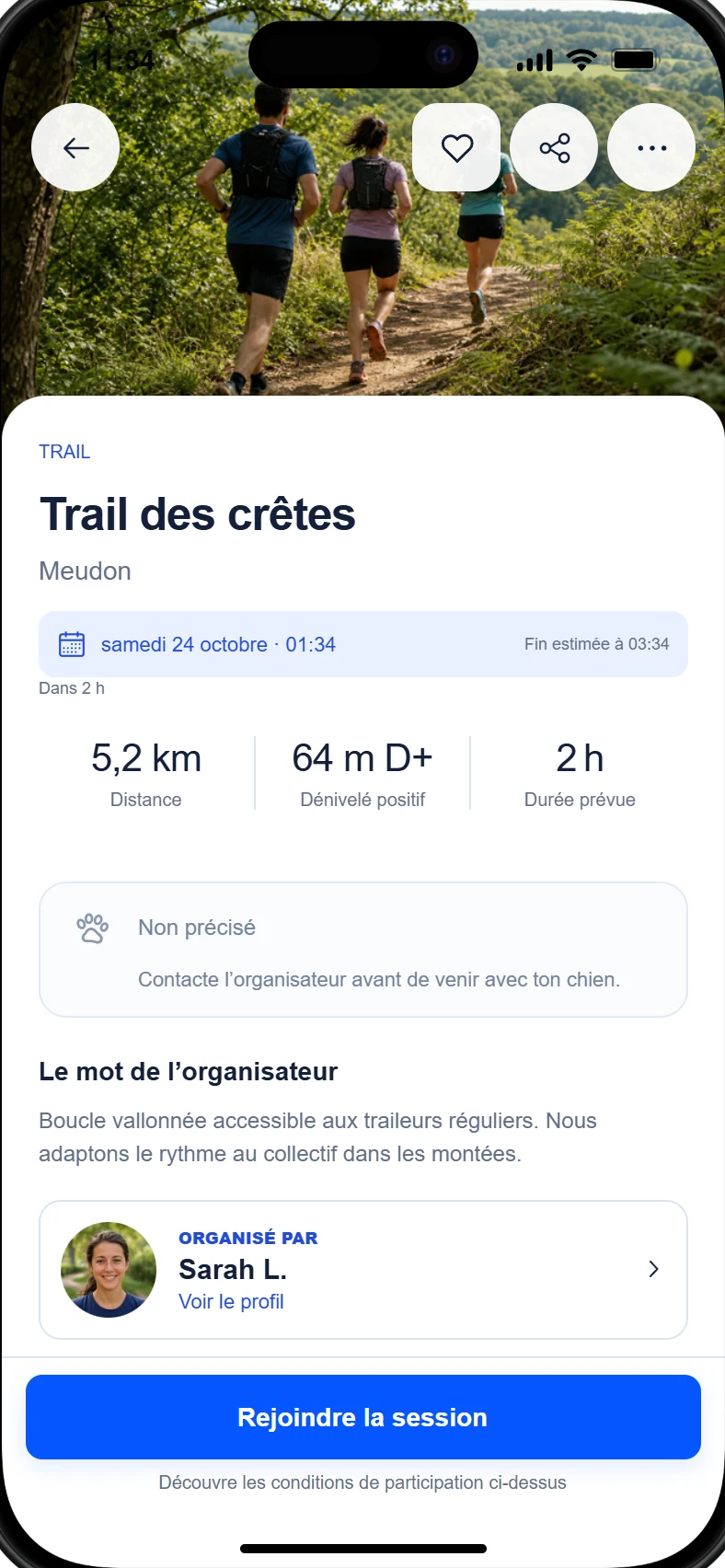
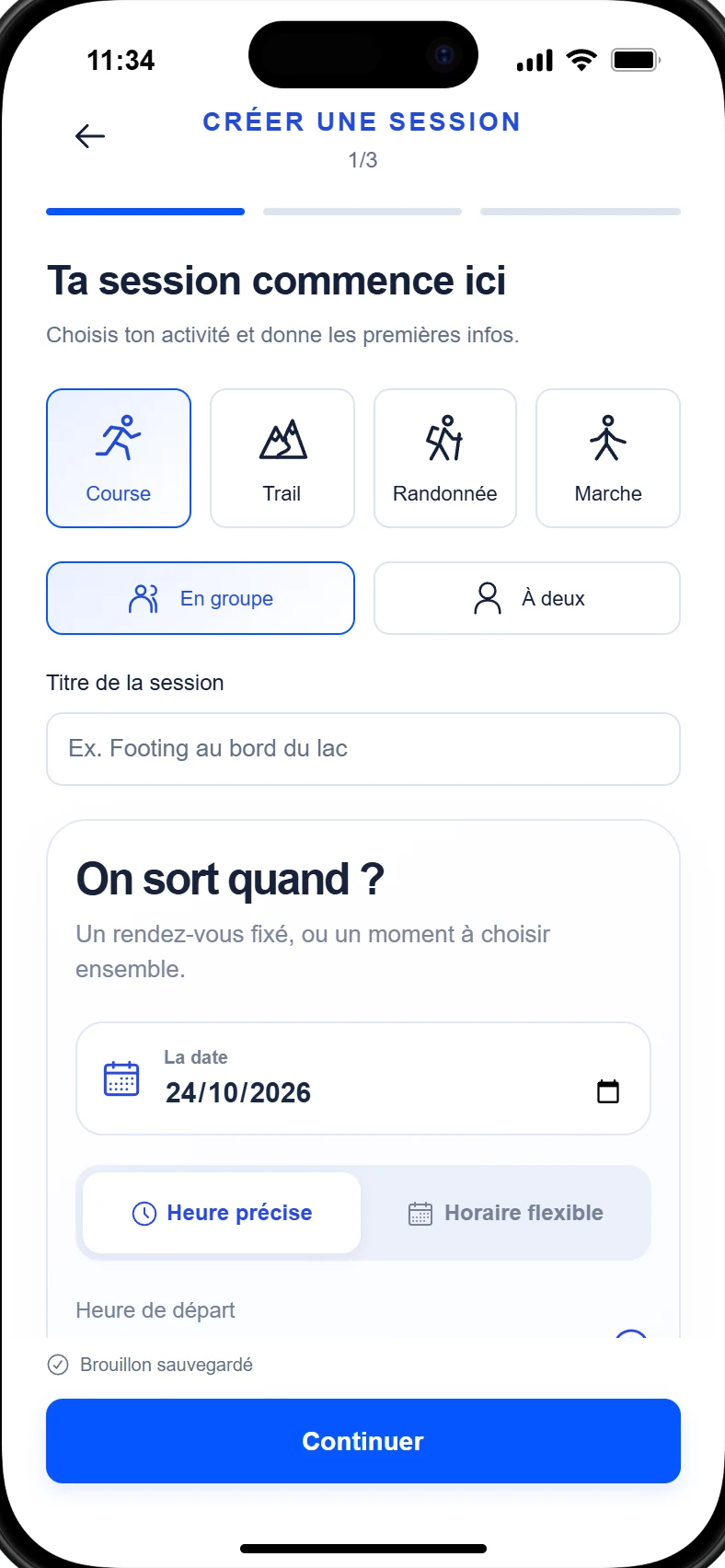
GUIDE 02Create a sessionYour outing idea becomes an invitation.
Add the first details.
Choose the activity, title, date and time. A photo helps others picture the outing. You can also suggest a weekly meetup.
Make the start clear.
Choose the meeting point and add your directions. For the optional route, draw a track, import a GPX, reuse My routes or add a link. The meeting point stays separate from the start of the track.
Review, then post.
Check the summary, acceptance and visibility settings. Publishing is an explicit action: your draft gives you time to prepare the outing.
GUIDE 03Find the meeting pointThe starting point, in the right place.
Open your confirmed outing.
Find it in My sessions and open its page. The exact meeting point and directions are reserved for the organiser and accepted participants.
Check the place and directions.
Open “Route and meeting point” to view the map and switch to full screen. Elevation and stops complement the route. Check the meeting point: it may differ from the route start.
Talk in the conversation.
Once accepted, you can ask the group for details and read messages before you go. Also check changes announced in the outing.
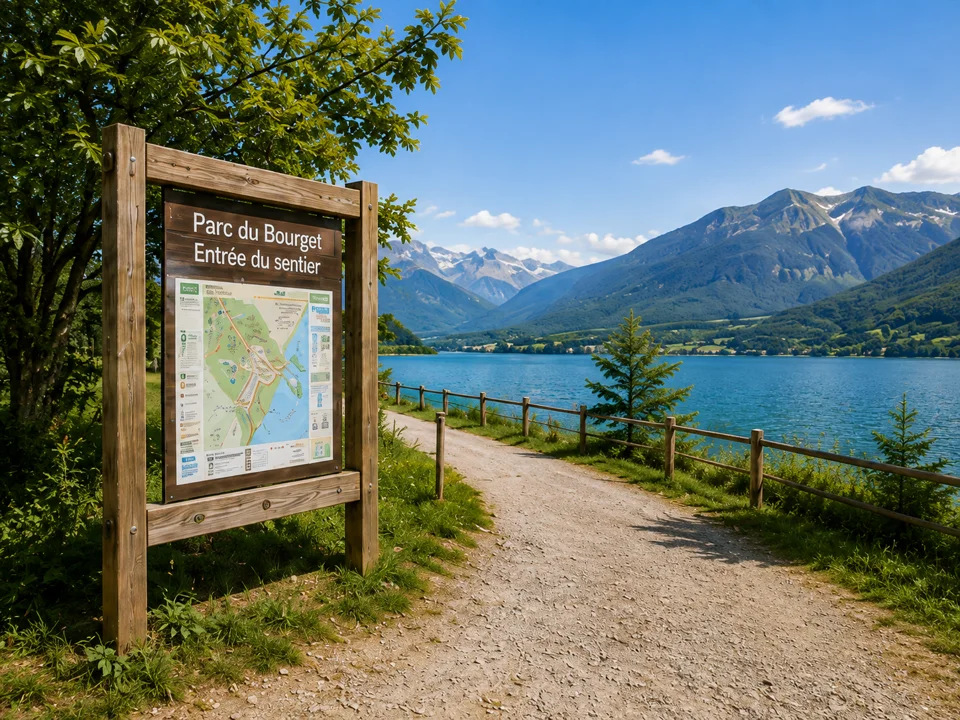
Meet at the park entrance.
Hi! This is my first outing with you. See you tomorrow 😊
GUIDE 04Chat with the groupReact, and choose when to send.
Open a conversation you can access.
In a session, you can access the conversation once admitted. Plan the details with the other participants.
Find the right expression.
The “Express yourself” panel brings together GIFs, stickers, memes, clips and emojis. Search for media, preview it and change your choice if you wish. Clip audio starts at your request.
Find what matters.
The Find in this chat shortcuts open Search, Media, Pins and Polls. Return to a message in its context to pick up the conversation. Selecting media does not send it: you always confirm before sending.
Meet at the park entrance.
Hi! This is my first outing with you. See you tomorrow 😊
GUIDE 05Share a memoryA moment to keep. A desire to meet again.
Open My memories.
After the outing, open the memory to prepare your post. Choose a photo or a Foulevo Card and the images you want to share.
Create a memory your way.
Personalise the information shown on the card: title, sport, date or available measurements. Choose Square or Story format and whether to include Vive.
Choose where to share it.
Check the audience and suggested destinations before posting. You can also export the card to share it elsewhere. Ask permission from people shown in your photos.
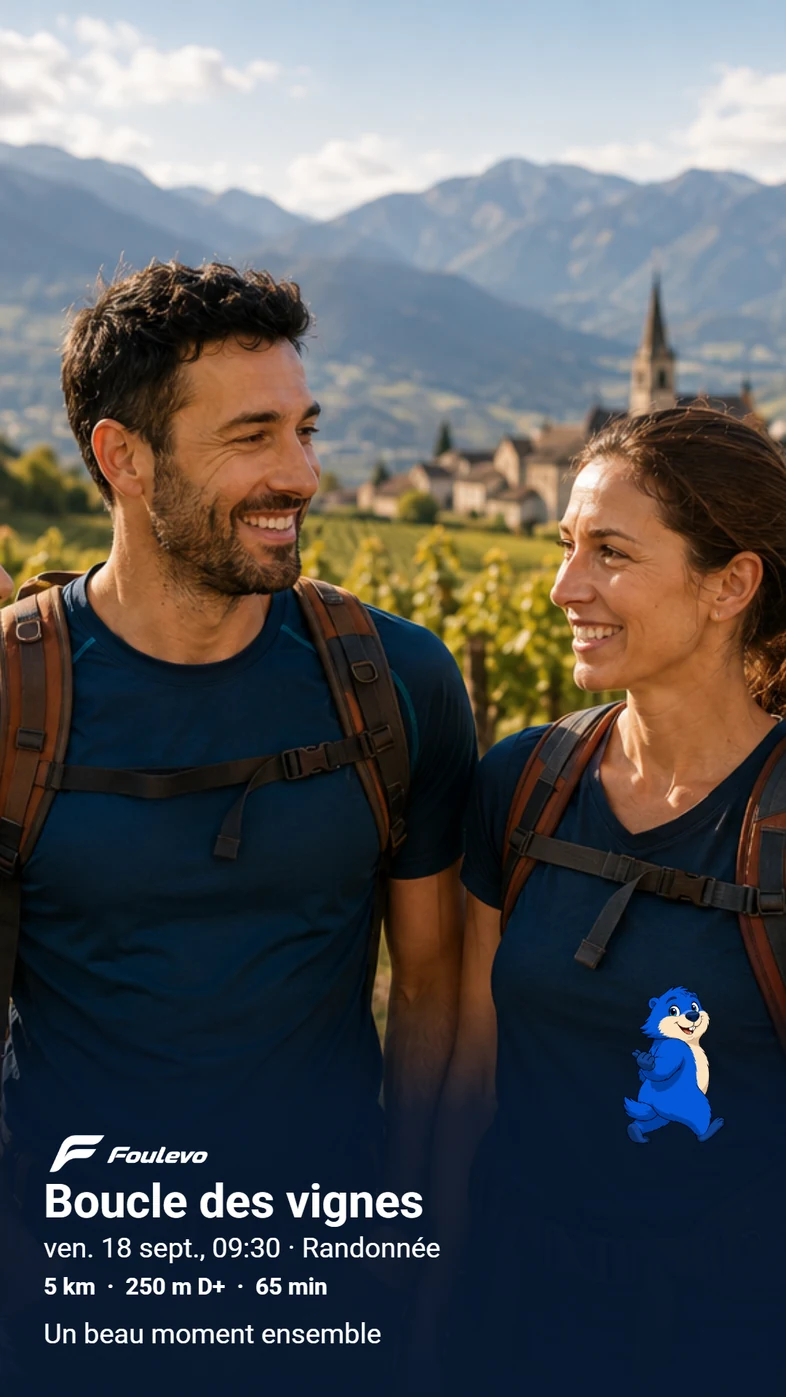
Prepare your next meeting
Choose an outing with confidence
Answers and step-by-step instructions are available in Help.
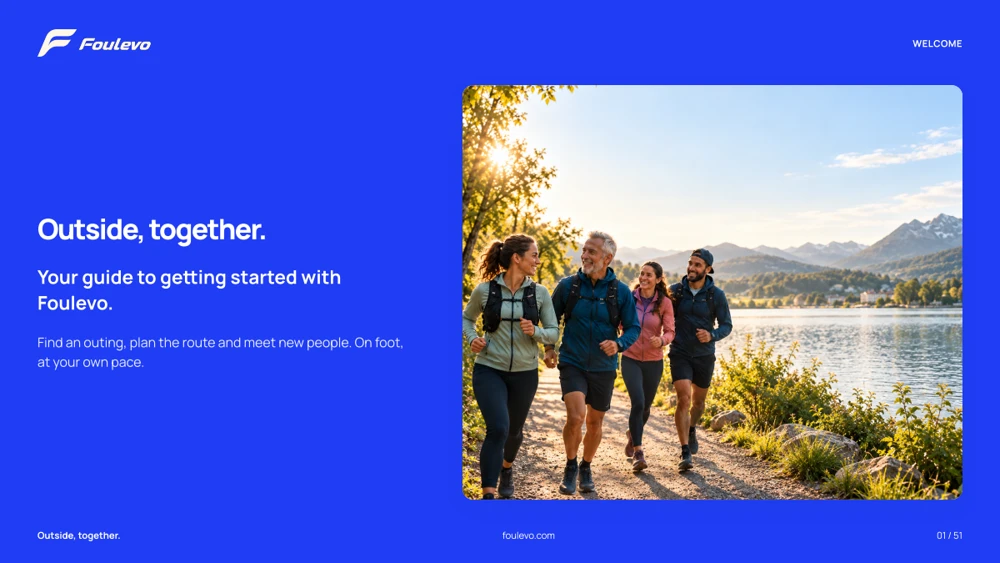
The app guide
Explore Foulevo’s essential steps in an illustrated 51-page guide.
The same guide, with lighter images for your phone or at their original quality.
Free, with no account or email address required.
Illustrative screenshots. The interface may vary by app version.

A little help
You’d rather
ask your question?
The Foulevo team is here to help. For a question about the app or your account, find ways to reach us on the Contact page.